
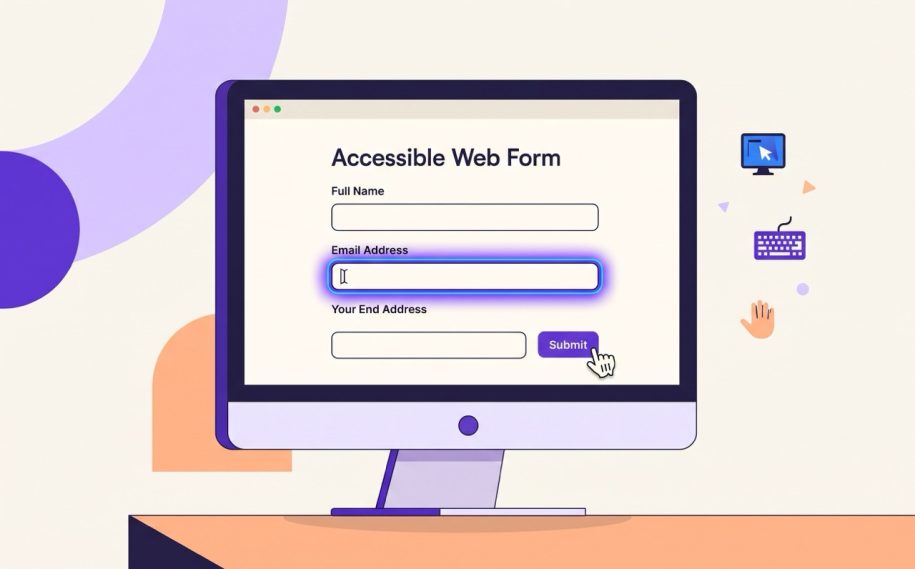
Online forms represent the front door for digital engagement. Whether visitors sign up for a newsletter, create an account, or complete an online checkout, forms make interaction possible. When digital forms lack proper technical foundations, people who use screen readers encounter significant hurdles.
The Web Content Accessibility Guidelines emphasize four core principles. Content must be perceivable, operable, understandable, and robust. Making a form understandable means users know what data each input field expects, how to navigate the layout without confusion, and how to recover when validation mistakes happen.
1. Provide Explicit and Visible Labels
Screen reader software relies on code semantics to inform the listener about the purpose of each control. A common misstep is relying solely on placeholder text inside an input field. Placeholder text disappears as soon as typing begins, and many screen readers ignore it entirely.
Ensure every field has an explicit label element properly tied to its corresponding input through matching identifiers. When a screen reader focuses on the input element, it will announce the associated label text immediately. This guarantees that visitors who are blind or have low vision receive clear instructions before typing.
2. Group Related Controls with Fieldset and Legend
Certain input types belong together conceptually. Radio buttons, grouped checkboxes, and multi part fields like dates of birth require shared context to make sense.
Without grouping, hearing an isolated option like Yes or No offers no clue about the underlying question. Wrapping related inputs in a fieldset element and defining the group question with a legend element solves this issue. The assistive software reads the legend text first, then announces the individual selection.
3. Deliver Timely and Clear Error Messages
Form validation presents another major area where understanding breaks down. If a user submits a form with missing information, merely displaying red borders around the fields leaves non sighted users stranded.
Use programmatically linked error descriptions via accessibility attributes. When an error occurs, announce the problem clearly, point to the exact field that requires correction, and provide plain instructions on how to fix it. Move system focus directly to the first invalid field or to a summary list of errors so the user can address the problem immediately.
4. Design Predictable Step Sequences
Keep the reading sequence identical to the visual flow. Avoid unexpected page updates or form submissions when an individual field changes state. Inform users in advance if a form includes time limits, multiple pages, or complex input patterns like phone numbers with specific area code formats.
Taking Your Next Accessibility Steps
Building fully accessible web forms removes barriers for your audience while reinforcing compliance with standards such as WCAG and the Americans with Disabilities Act. While Accesslio delivers technical guidance on digital accessibility best practices, our recommendations should not be interpreted as formal legal counsel.
If you are just beginning to evaluate your website, run our free check today to see how your current forms perform against core accessibility checkpoints. If your team has already taken advantage of the free scan, upgrading to our full comprehensive review will provide in depth code analysis and manual screen reader testing to secure your overall digital compliance strategy.